 Viral Swipe File


How to use your own voice in your AI music
Creative Tools · Live App Scroll, Step-by-Step Tutorial, Creator face over in-app footage
Why it beat its usual
449xthe views @samoricoles usually gets
338K views
- This video338K
- Usual views752
- Creative Tools median16× the median viral factor of the 1,381 Creative Tools videos in the library (median 28.5x).
- Live App Scroll median2.2× the median viral factor of the 2,336 Live App Scroll videos in the library (median 206x).
- Step-by-Step Tutorial median4.2× the median viral factor of the 682 Step-by-Step Tutorial videos in the library (median 108x).
- Creator face over in-app footage median2.4× the median viral factor of the 11,947 Creator face over in-app footage videos in the library (median 186x).
- Views against the Creative Tools nichebelow the median of the 1,381 Creative Tools videos in the library (median 453,945).
- Engagement against the Creative Tools niche6.9%, above the Creative Tools median of 4.1%.
- Engagement
- 6.91%
How it's built
- Live App Scroll
- Step-by-Step Tutorial
- Creator face over in-app footage
- How to hook
- Screen Recording
- App Mockup
The hook promises to teach something useful, built to keep the viewer for the steps. Built as Screen Recording and App Mockup. A creator speaks as themselves, built to read like a post from someone the viewer follows. It presses on curiosity: wanting to know what happens or how. The tone is educational.
It is pitched at viewers who know solutions exist, so it names the kind of solution, not this one.
- Hook on screen
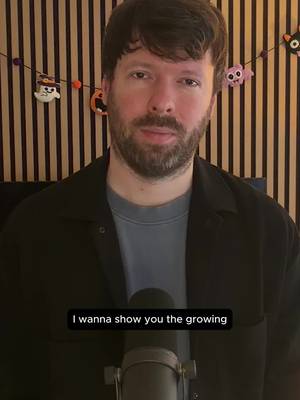
- “How to use your own voice in your AI music”
- First words said
- “Let me show you how to use your own voice in your Suno songs.”
What's said
4:34 · EnglishLet me show you how to use your own voice in your Suno songs. We're gonna jump into Suno and we're gonna find the song that I wanna work with. So I'm gonna go with this one right here. Let me play a little bit of this.
What if you want to use your own voice or you just want to change out the voice, right? So you can have something very unique to your production style. So what you need in this case are the stems. The stems are the individual tracks that make up the song, the drums, the bass, the vocals, everything separated. The way you do this is you can go over to the three dots here to the right, click get stems and then you'll get all detected stems.
That's gonna cost you 50 credits if you do have premiere. What you can do at this point is click on the three dots, go to remix, edit, open in studio. Once you're in studio, you're gonna see the song by itself on the first track, you're gonna go over to the right side on these clip settings and you're gonna extract the stems. The stem you're gonna look for are the vocal stems. So in this particular case, I was able to take these stems that were extracted and insert them into the project.
So I have the ability to now solo that vocal and I can play it by itself. So this is really What a stem is alright so now I have that by itself so I can easily download just that track by clicking the three dots here and just clicking download and in this case we'll get the wave version next we're gonna jump into Kits Dot AI which is gonna allow us to clone the voice that we wanna use to replace the vocal that we have in Suno once I'm inside kits I'm gonna go to clone voices and you'll see I'll have a couple of options here professional voice cloning or instant voice cloning I'm gonna go ahead and select instant and if you wanna do an instant voice clone you're gonna have to have at least 30
seconds to three minutes of vocal data right but professional voice cloning you're gonna have to have anywhere from three minutes and up if you wanna get a better clone you're gonna wanna go with professional voice cloning if you just want something really quick go ahead with the instant voice cloning I'll go with professional voice cloning and from here you can either just record your audio right into the system you can sing acapella and it will capture that vocal or you can upload any files that you might have so I'll click upload and I have a vocal here that I wanna replace the current vocal with so I'll play a little bit of that so I'll use that one now what I ended up doing was Taking that
particular vocal and looping it, right? I looped it for 30 minutes. The more vocal data that you have, the better the clone is gonna be. The next thing you're gonna do is hit next, give your new voice clone a name, specify what it is. Is this singing? Is it speaking? Is it rapping? Is it an instrument? I'll select singing and then you're gonna hit train. This is gonna take some time, right? The longer your sample, the longer it's going to take.
For a 30 minute sample, this says it's gonna take over four hours. So you can go ahead and do something else. Once you start this process for shorter samples, it won't take as long. Once that process of cloning is finished, you're going to see your clone here. It's going to stay in the system, which is great. Then you can literally select the vocals that you want to swap out from Suno. Those are going to be in those vocal stems that we talked about.
Go ahead and select those. Once you do that, you're gonna get a brand new version of those lead vocals with the new voice clone that you set up. Once that new vocal is finished, you go ahead and download it. Then I can go ahead and jump back into Suno. Like I said, I do have the premiere version. I'll grab that new vocal and I can just literally drag it right into Suno. I'll Mute the vocals that were there and I'll play my new song.
And that's how you can use your own vocals, whether you are a singer or a rapper in the songs that you make in Suno. If you need help with this, be sure to DM me or click the link in my profile. I'll be happy to get you started.
The words behind 449x its usual
Make your own
“How to use your own voice in your AI music”
Same format: Live App Scroll
Highest viral factor first · All
 369Kxnothing more humbling than when you find out you don't know your…
 140KxT-MOBILE LAWSUIT
 138Kxstop doomscrolling and actually do something productive
 103KxPOV: you have a 11:59 deadline
 66KxPOV you're eating something that isn't your period craving
 13KxCrashing out because my alarm won't turn off until I take a photo of…
 13KxI learnt English on Airlearn, I got this
 13KxRaise your hand if you have less than A thousand dollars in your…
 13KxReminder: a day rewires your brain chemistry and apps like this exist
 12Kxi wish i was kidding what has my attention span come to bro 😭😭😭
 12KxTutorial Fotos del Grinch
 12KxBuffalo Wild Wings just dropped a new Brown Sugar Heat sauce
Same niche: Creative Tools
Highest viral factor first · All
 44KxSi tú también quieres ser #merlina usa mi código POPIA en @Glam AI…
 37Kxtutorial for photos like this
 27KxMe in my room taking random low quality selfies:
 18Kx"como te salen tan bien las fotos con flash?"
 18Kxestas fotos las saque YO???
 18KxNo sabia que las que hacemos crochet teníamos una app para nosotras
 17Kxus and our fav digicam app
 17KxFirst rule of IG: NEVER waste good photos like this
 15Kxupdate on the app i'm building with replit (and a sneak peek)
 14KxDon't they use this for corn?
 14KxAN ALLE, DIE WIEDER IN DIE SCHULE STARTEN!!!
 12KxYou're telling me there's an app that lets you print 45 free…
About this video
449x: about 449 times the views @samoricoles usually gets. Viral factor divides a video's views by its account's usual views, so it measures how far the video beat its creator's normal reach, whatever the size of the account. 6.9% engagement rate. 11,191 likes, 328 comments, 2,292 shares, 9,596 saves. Filed under Creative Tools, Live App Scroll, Step-by-Step Tutorial and Creator face over in-app footage.